
Groups organize Uptime checks and heartbeats on the Uptime page, for example by site or by customer. A group is only a way to view them: it never alerts or opens incidents. Each check still alerts on its own.
Adding checks to a group
Section titled “Adding checks to a group”- When you add or edit a check or heartbeat, choose a group in the Group field, or New group… to create one. No group leaves it out of any group.
- Or select checks on the Uptime page and use Move to group in the bulk actions bar. Choosing No group there takes them out of their group. Their history stays either way.
Reading a group
Section titled “Reading a group”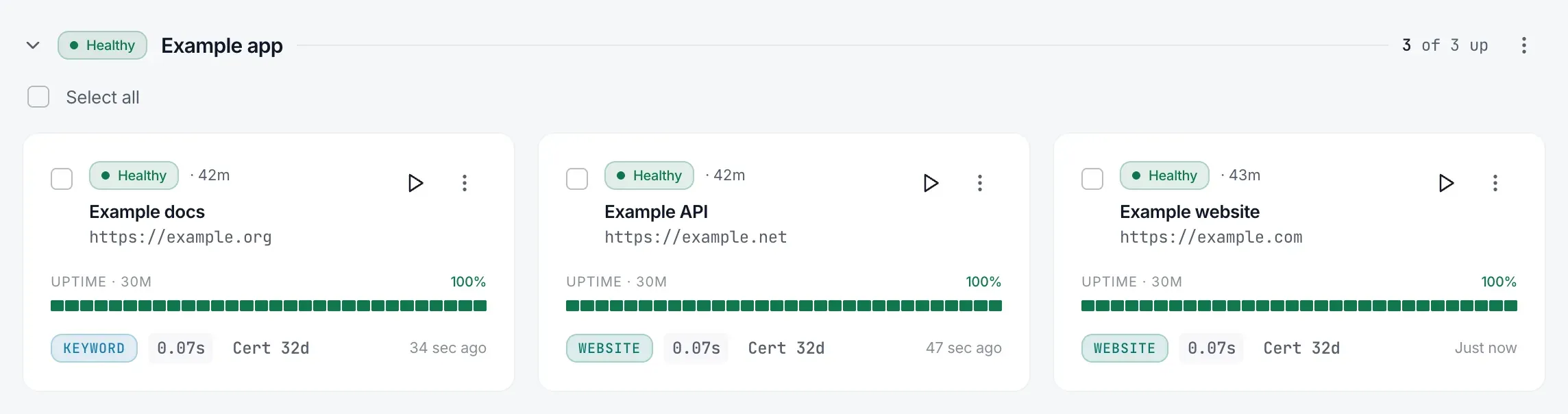
Each group’s header shows:
- The worst status among its checks.
- How many checks are up, as N of M up, counting only checks that aren’t paused, plus · K paused if any are paused.
- A menu with Rename group and Delete group.
Deleting a group keeps its checks. They move to Not in a group.
The Uptime page can list checks By group, By type, or with No grouping.