Test VPN configs from code: API, CLI and MCP
Yes. TunnelHQ's REST API has POST /check, which takes a WireGuard or OpenVPN config, a share link such as vless://, or IKEv2 and OpenConnect credentials, runs a real connection test on TunnelHQ's checkers and saves nothing. The thq CLI and the MCP tool test_vpn call the same endpoint, so a script, a CI job and an AI assistant all get the same answer. It needs the Starter plan or above.
Tahir Mehmood8 min read
If you ship VPN configs, sooner or later you want to test them from something other than a client app: a script that runs every hour, a CI job that refuses a broken config, or an AI assistant you can ask "does this link work?". This post shows all three, with the real requests, what comes back, and the limits.
Everything here is the production API at https://app.tunnelhq.com/api/v1. The examples read the key from an environment variable; Getting an API key shows where to create one.
Is there an API to test a VPN config?
Yes. POST /check takes a config or share link in the request body, runs a connection test, and returns the result. It doesn't need a monitor, a project, or anything saved first.
It's easy to pick the wrong endpoint, because there are two that test:
| Endpoint | Tests | Needs |
|---|---|---|
POST /check |
A config, link or set of credentials in the request | An API key |
POST /test |
A monitor you already saved, by its server_id |
An API key and an X-Project-Id header |
Use /check for one-off tests and pipelines. Use /test when you already monitor the server and want a fresh result for it.
A share link is the simplest case, because the protocol comes from the scheme:
curl -X POST https://app.tunnelhq.com/api/v1/check \
  -H "X-API-Key: $TUNNELHQ_API_KEY" \
  -H "Content-Type: application/json" \
  -d '{"config": "vless://<uuid>@vpn.example.com:443?security=reality&...", "timeout": 30}'
The schemes it recognises on its own are vless://, vmess://, trojan://, ss://, hysteria2://, hy2:// and tuic://. For anything else, send protocol too. A WireGuard config is multi-line text, so let jq build the JSON instead of escaping newlines by hand:
jq -n --rawfile c wg0.conf '{protocol: "wireguard", config: $c}' |
  curl -X POST https://app.tunnelhq.com/api/v1/check \
    -H "X-API-Key: $TUNNELHQ_API_KEY" \
    -H "Content-Type: application/json" \
    -d @-
The same works for amneziawg and for an .ovpn file with "protocol": "openvpn". IKEv2 and OpenConnect don't need a config at all: send protocol, host, username and password, plus remote_id for IKEv2 if it differs from the host.
The optional fields are timeout (seconds, 5 to 120, default 30), port, engine to force one, and region with region_fallback to test from a chosen location, which needs the Pro or Business plan.
Two things to know before you script it. The request stays open until the test finishes, and a dead server takes longer to judge than a working one, so give your HTTP client a timeout well above the test's own. And the test runs from TunnelHQ's checkers on the public internet, so the server has to be reachable from there.
How do I test a share link from the command line?
Install thq and run thq test with a file, a link, a raw config, or a subscription URL. It calls POST /check for you and works out the protocol on its own.
curl -fsSL https://tunnelhq.com/install.sh | bash
thq login
The installer needs nothing installed first on macOS, Linux or WSL. On Windows, irm https://tunnelhq.com/install.ps1 | iex in PowerShell does the same. thq login opens the browser to approve the sign-in, with no key to copy.
Then test:
thq test ./wg0.conf
thq test ./office.ovpn
thq test 'vless://<uuid>@vpn.example.com:443?security=reality&...'
thq test https://provider.example.com/sub --first 5
thq test --protocol ikev2 --host vpn.example.com -u alice -p secret
thq picks the protocol from --protocol, then the link's scheme, then the content (an [Interface] section is WireGuard, or AmneziaWG when it has keys such as Jc or H1; client and remote lines are OpenVPN), then the file extension. A subscription URL is fetched on your machine, and its entries are tested five at a time. --first and --index pick a few of them.
Add --json for machine-readable output: one JSON object for a single test, or one per entry, as each finishes, for a subscription.
How do I test configs in CI before shipping?
Run thq test in the job with an API key in THQ_API_KEY. It exits with 0 when the test passes and 1 when it fails, so a broken config fails the build.
For a single config or link, that's all you need. For a subscription URL, read the exit code carefully: thq test exits 1 only when no entry at all is healthy. If you need every config to pass, test them one by one and fail on the first error, or check each JSON line yourself.
A GitHub Actions job that tests every .conf and .ovpn file in a configs/ folder:
name: Test VPN configs
on: [push, pull_request]

jobs:
  test-configs:
    runs-on: ubuntu-latest
    steps:
      - uses: actions/checkout@v4
      - name: Install thq
        run: |
          curl -fsSL https://tunnelhq.com/install.sh | bash
          echo "$HOME/.local/bin" >> "$GITHUB_PATH"
      - name: Test every config
        env:
          THQ_API_KEY: ${{ secrets.THQ_API_KEY }}
        run: |
          failed=0
          for f in configs/*.conf configs/*.ovpn; do
            [ -e "$f" ] || continue
            thq test "$f" --json || { echo "FAILED: $f"; failed=1; }
          done
          exit $failed
Store the key as a repository secret, never in the repo. A key created in the dashboard is tied to its workspace, and you can give it an expiry and revoke it on its own, which is what you want for CI. The key from thq login is for your own machine.
Mind the rate limit when the folder is large. Every thq test is one API request, and Starter allows 30 a minute, so a big batch on Starter can get a 429 partway through. Split it across runs, or move to a plan with a higher limit.
How do I let an AI assistant test VPN links?
Connect the TunnelHQ MCP server to the assistant. Then you ask in plain words, and it calls test_vpn for one config or test_batch for many, both of which run the same check as POST /check.
There are two ways to connect, and both need a workspace on Starter or above:
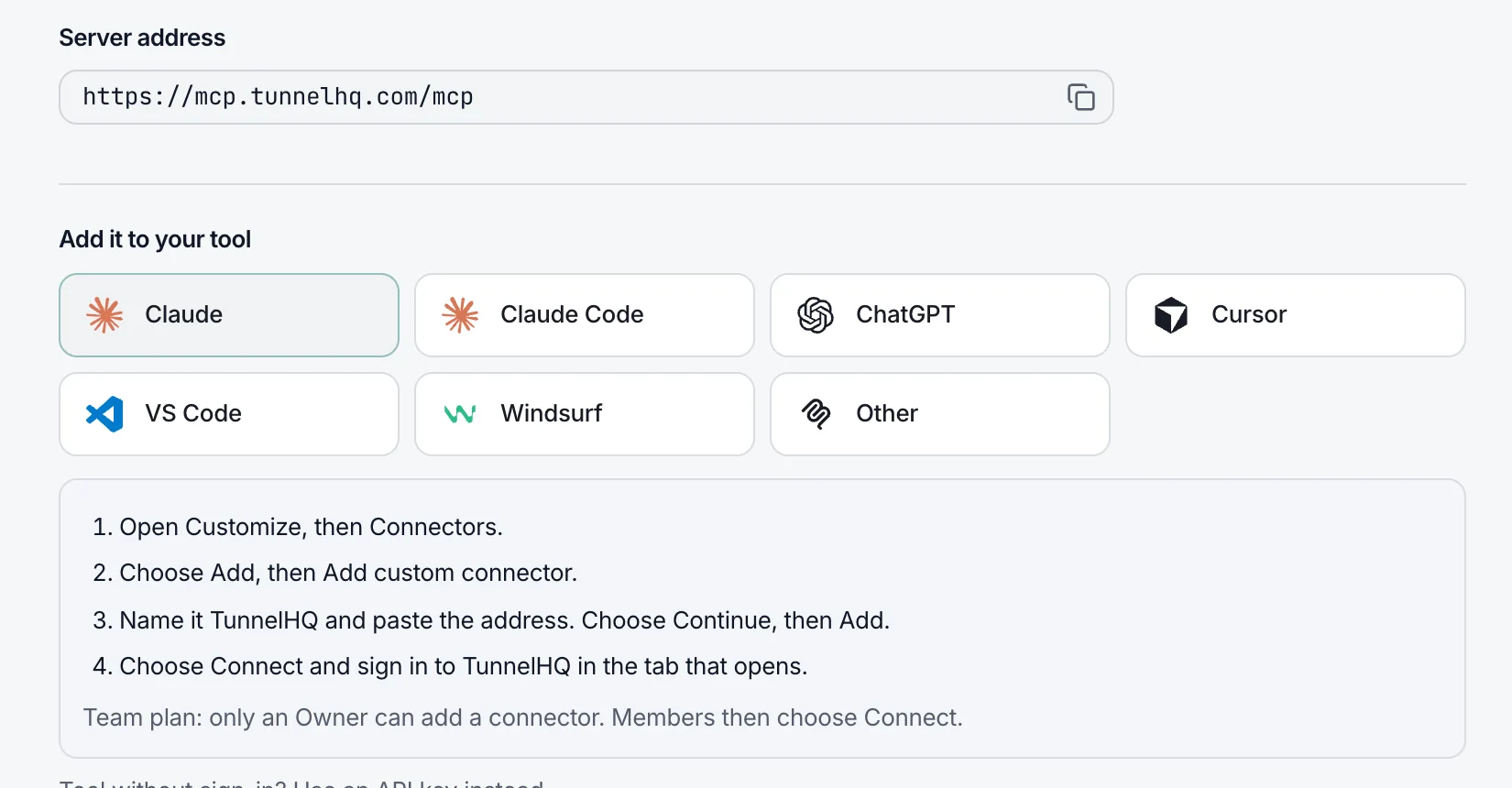
- Sign in, no key. Claude, Claude Code, ChatGPT, Cursor, VS Code and Windsurf connect to
https://mcp.tunnelhq.com/mcp. You sign in to TunnelHQ and choose a workspace, a project, and Read only or Read and write. Testing needs Read and write. Neither kind of connection can delete anything. - Run it locally with a key. For clients that start a local server, such as Cline, the server runs with
npxand aTUNNELHQ_API_KEYin the client's config.
For Claude Code, the sign-in way is one command, then /mcp and Authenticate in the session:
claude mcp add --transport http tunnelhq https://mcp.tunnelhq.com/mcp
The local way, with a key, is easiest through the CLI, which writes the config for you:
thq mcp --client claude --apply --api-key "thk_..."
The same command works with --client cursor, windsurf or cline. The MCP docs have the steps for every client, and the AI assistants page shows what an assistant can do once it's connected.
Prompts that call the testing tools:
- "Test this link and tell me if it connects: vless://..."
- "Test the first 10 servers in this subscription and list the ones that fail, with the reason."
- "These three WireGuard configs: which one has the lowest latency?"
test_batch takes up to 500 inputs in one call: links, subscription URLs, and with the local server, file and folder paths on your machine. It returns a result for each entry and a summary with the healthy count and the fastest configs. That's cheaper than the assistant calling test_vpn again and again.
One caution: the assistant sees whatever you paste, private keys and passwords included. Paste configs only into an assistant you'd trust with them, and use test peers where you can.
What do the results look like?
Every test returns one JSON object. status is healthy or down, the timing fields are in milliseconds, and on a failure error_message and error_category say why.
A passing test from POST /check (values are examples):
{
  "test_id": "…",
  "status": "healthy",
  "protocol": "vless",
  "config_detected": true,
  "tested_at": "2026-11-11T09:12:44.517Z",
  "latency_ms": 157,
  "connect_ms": 364,
  "connection_time_ms": 412,
  "handshake_time_ms": 298,
  "assigned_ip": null,
  "exit_ip": "198.51.100.7",
  "error_message": null,
  "error_category": null,
  "engine_used": "xray"
}
The fields worth using:
| Field | Meaning |
|---|---|
status |
healthy when the tunnel came up and traffic went through it, otherwise down |
connect_ms |
How long the tunnel took to come up |
latency_ms |
One round trip through the tunnel, once it's up |
exit_ip |
The address traffic left from, on a pass |
error_message, error_category |
Why it failed, on a failure |
engine_used |
Which engine ran the test |
thq test --json prints this same object, so a script can read status and latency_ms from either.
The checks go past "the port answered". A healthy result means the tunnel came up and real traffic went through it. Two failures you'll see often: server_not_connected, where the tunnel never came up, and internet_stuck, where the tunnel came up but traffic didn't reach the internet. The second usually means the server's forwarding, NAT or DNS, not the client config.
What are the rate limits?
Requests are limited per workspace, by plan: 30 a minute on Starter, 60 on Pro and 120 on Business. The Free plan has no API access, so the API, the CLI and the MCP server all start at Starter.
| Plan | Per minute | Per day | Per month |
|---|---|---|---|
| Starter | 30 | 5,000 | 50,000 |
| Pro | 60 | 25,000 | 250,000 |
| Business | 120 | 100,000 | 1,000,000 |
A POST /check counts as one request against these limits. It doesn't use the monthly allowance of on-demand tests, which is for re-testing saved monitors through POST /test. When you go over, the API returns 429 with retry_after: 60 seconds for the per-minute limit, 3600 for the per-day one. Every response carries X-RateLimit-Limit, X-RateLimit-Remaining and X-RateLimit-Reset, so a script can slow down before it hits the wall.
Without an account, the free tester on this site runs the same kind of test in the browser: 5 tests per IP address per 24 hours, no sign-up, and nothing is stored. It's fine for checking a link by hand, and not meant for scripts.
When a test now and then isn't enough, and you want the same check every few minutes, with alerts and history, save the config as a monitor instead. The REST API docs and the CLI docs cover creating monitors from the same configs, and pricing lists the check intervals per plan.