Run TunnelHQ from your AI assistant
Ask what's down, retest a server or set up your monitoring from the chat you already use, with one sign-in and no key to copy.
- Works with
- Claude
- ChatGPT
- Cursor
- VS Code
Included on every paid plan.
Which of my tunnels and checks are down right now, and why?
List monitors status: down
Seoul 1 (OpenConnect) has been down since 15:58 UTC: "Tunnel unreachable". Everything else in Larkspur VPN is up. Retest it?
Yes.
Retest an incident's monitor Seoul 1
Seoul 1 is back up. It connected in 231 ms.
Connect once
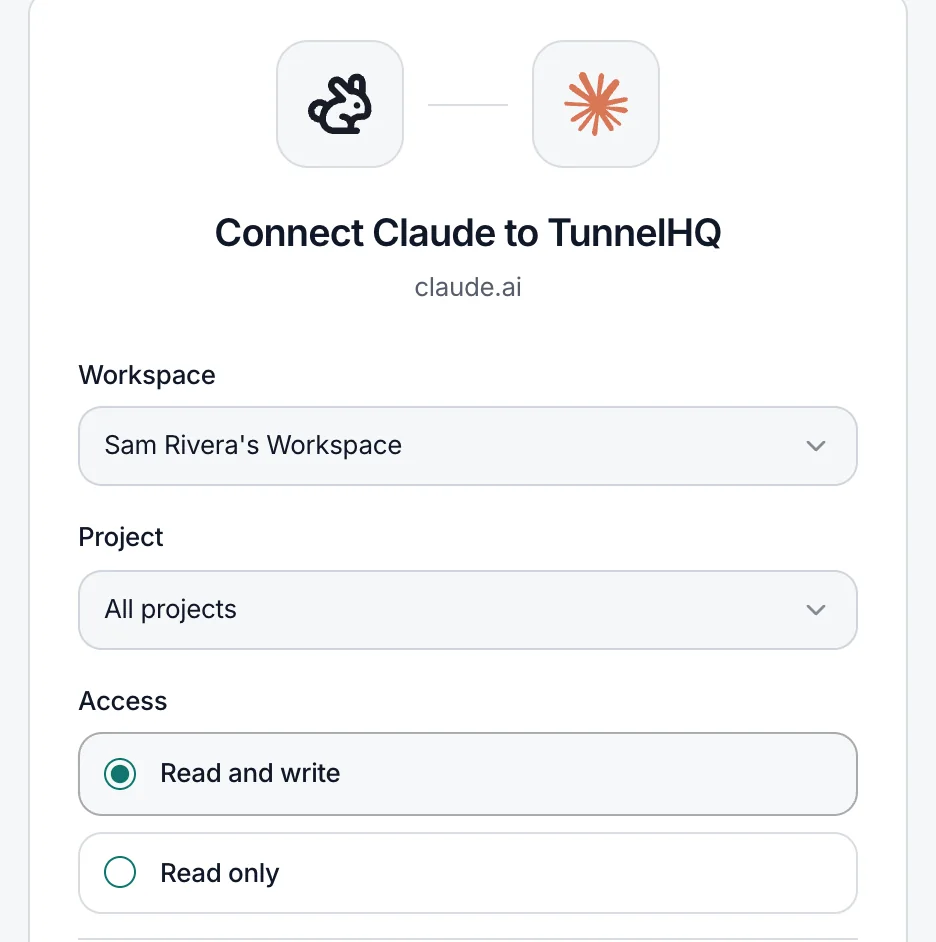
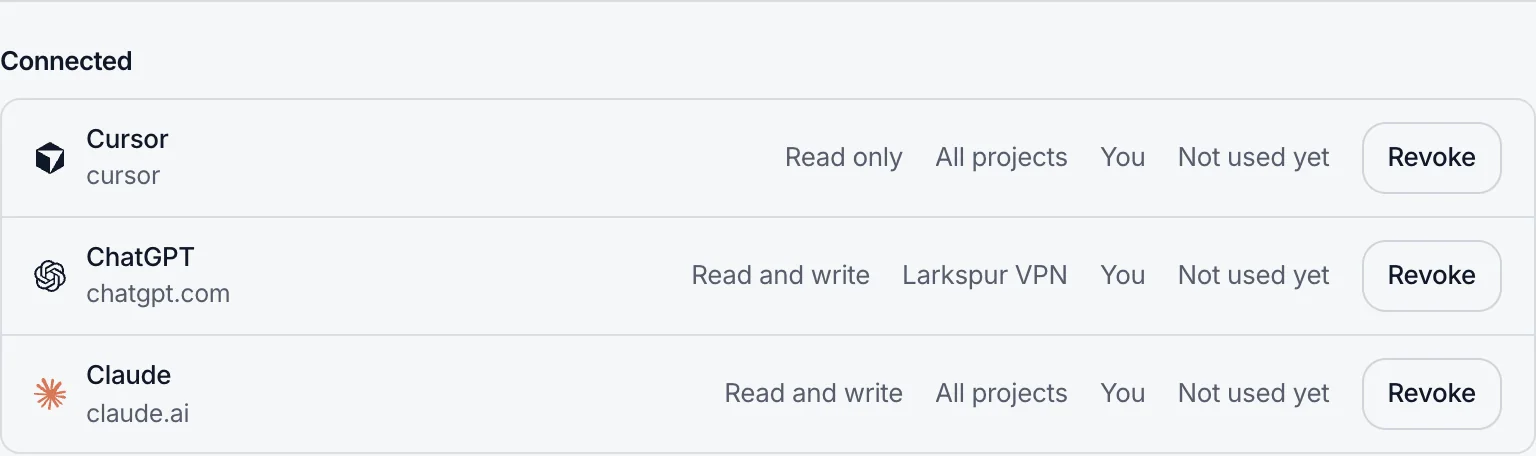
TunnelHQ hosts the server. You approve each assistant and choose what it can reach.
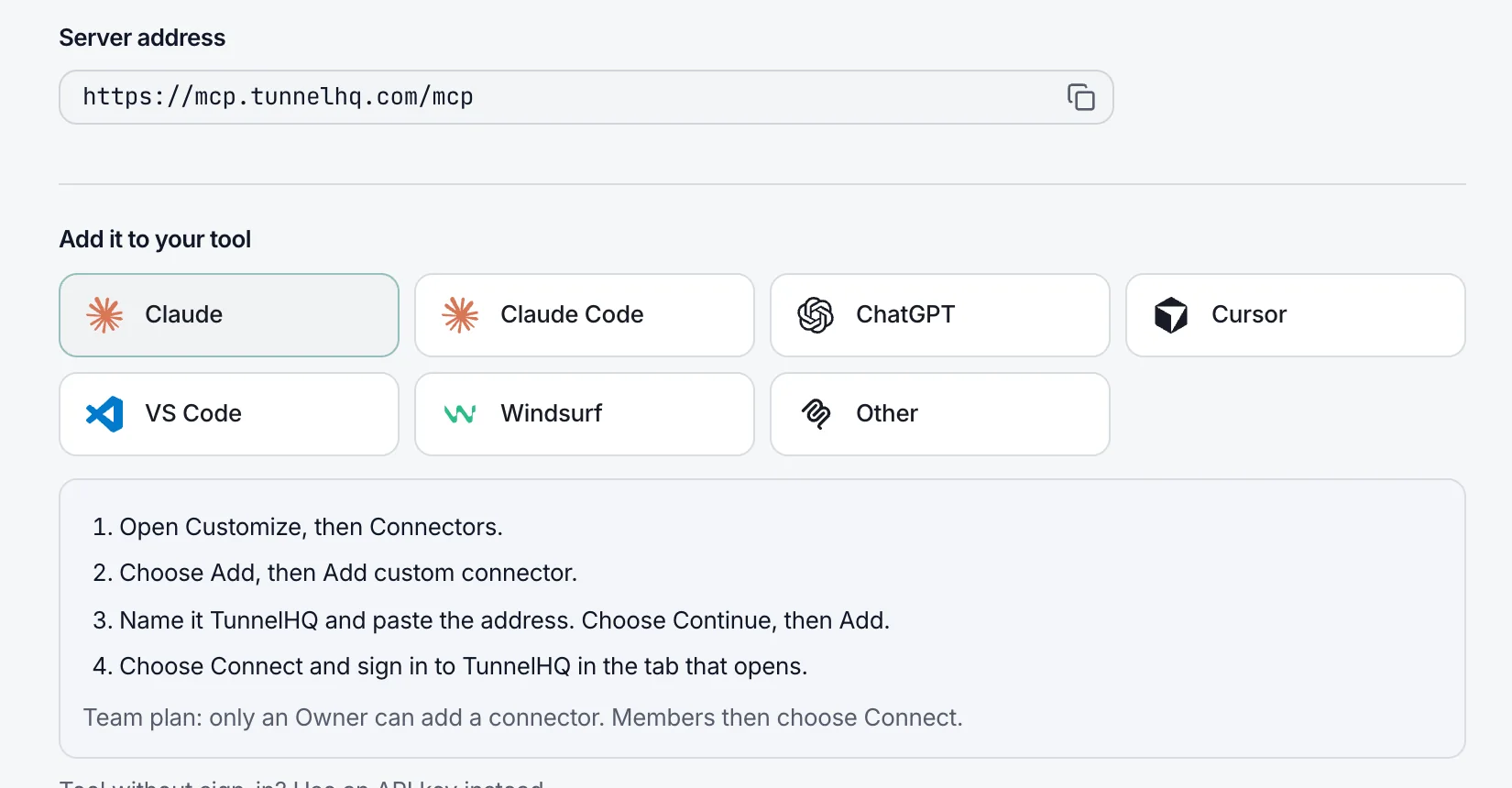
Where to paste it
https://mcp.tunnelhq.com/mcp- Open Customize, then Connectors, and choose Add custom connector.
- Name it TunnelHQ, paste the address and choose Add, then Connect and sign in.
On a Claude Team plan, an Owner adds it and members choose Connect.
- Add the server, then type
/mcp, choose tunnelhq and Authenticate.
claude mcp add --transport http tunnelhq https://mcp.tunnelhq.com/mcp- In Settings, Connectors, Advanced, turn on Developer mode.
- Choose Create, paste the address, set Authentication to OAuth, then sign in.
Developer mode needs a ChatGPT plan that includes it.
- Choose Add to Cursor under Developers → AI assistants in the dashboard, then Needs login.
- Or add this to
~/.cursor/mcp.json:
{
  "mcpServers": {
    "tunnelhq": { "url": "https://mcp.tunnelhq.com/mcp" }
  }
}- Choose Add to VS Code under Developers → AI assistants, then Trust and sign in.
- Or run MCP: Add Server, choose HTTP and paste the address.
- Add this to the MCP config file from the Cascade panel, save, and sign in when asked:
{
  "mcpServers": {
    "tunnelhq": { "serverUrl": "https://mcp.tunnelhq.com/mcp" }
  }
}- Use the address with Streamable HTTP and OAuth.
Clients that only take a key can run the server with an API key.
Set up by one prompt
Every empty Tunnels and Uptime page has a prompt for your assistant. It finds what you run, asks first, and tests what it adds.
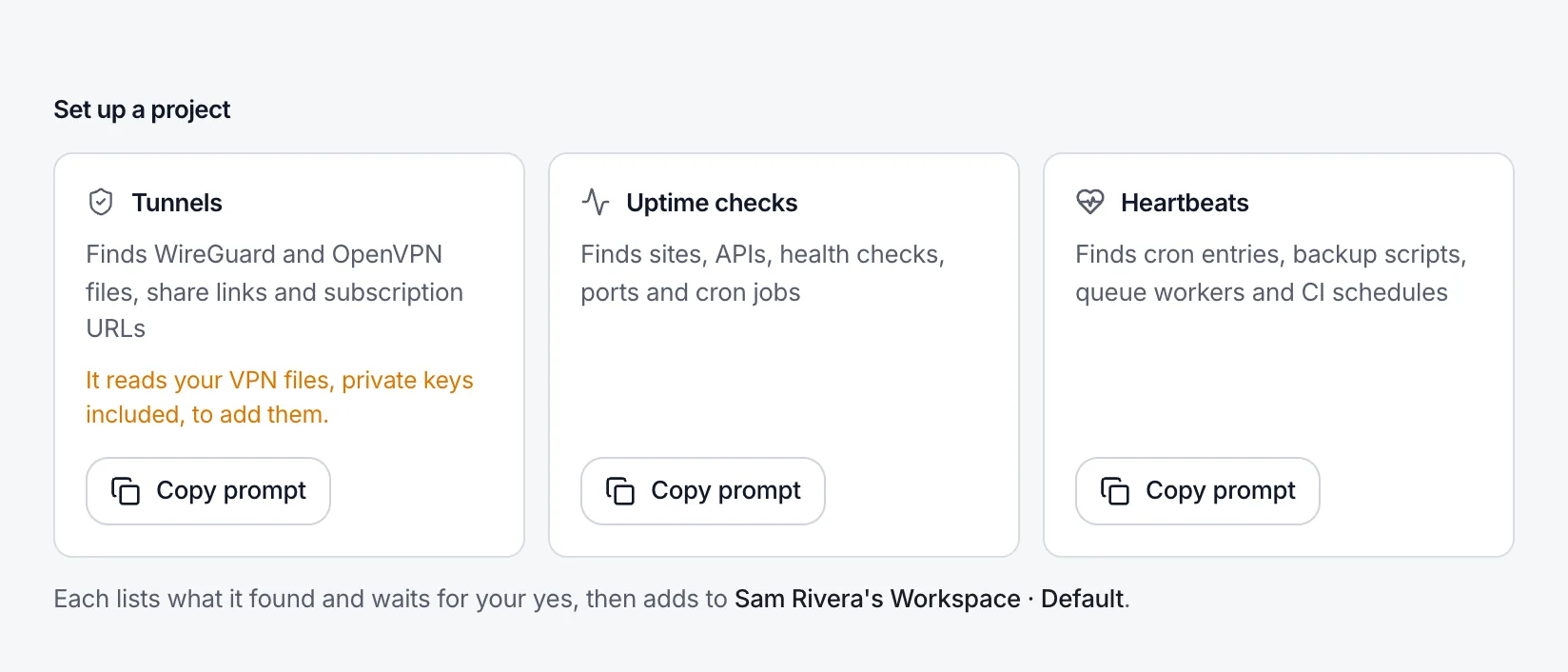
Copy the prompt
Tunnels, Uptime checks and heartbeats each have one, written for your workspace and project. It's also in each page's Add menu.
› Prompt copied from the Uptime page
…
Then look through this project for what we
run in production and should watch: our
websites and APIs (…), ports we open to
the internet, and scheduled jobs such as
cron tasks or backups.

Leave out:
- other companies' services the code calls
  (…);
- localhost, emulator and private addresses,
  and staging, test or example URLs;
…
- VPN servers: they belong on the
  Tunnels page;
…
List what you would add, with where you found
it, and wait for my OK. …
It asks before adding
It lists what it found, and where, and waits for your OK.
I added all five checks to Larkspur Web, and all four that run on a schedule passed their first run. None failed.
Every check tested
It adds each one, runs it once and reports the first results.
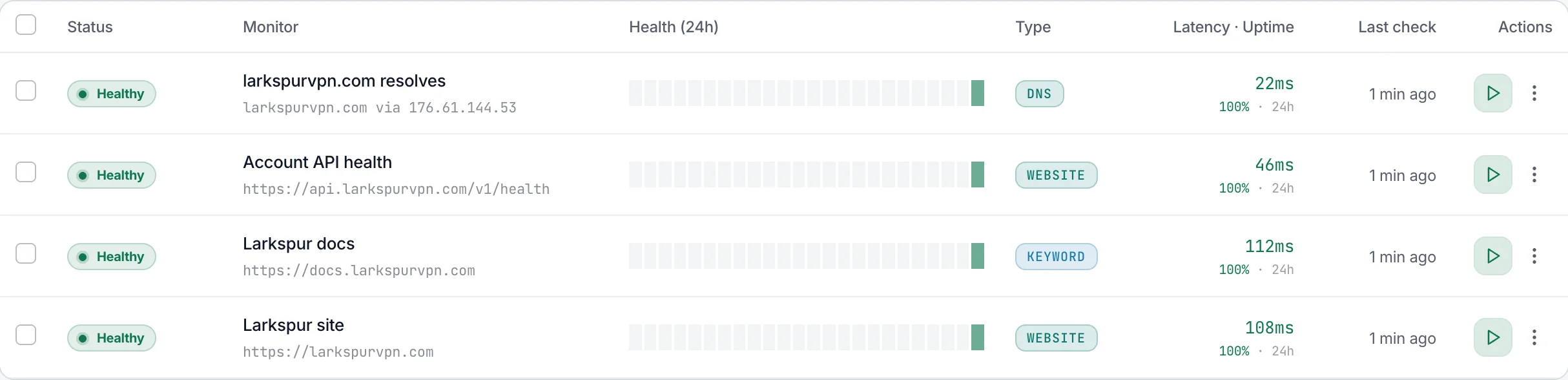
In your Uptime list
The checks it added, already healthy, next to everything else you watch.
What it can do
29 tools for tunnels, checks, incidents and subscriptions. None of them deletes.
What a connected assistant can do
- See your monitors, checks, heartbeats and incidents
- Create and edit monitors, checks and heartbeats
- Acknowledge incidents and run a check now
- Delete anything, change billing or API keys, or manage people
A Read only connection can see, nothing more.
Safe by design
It can't delete anything, change billing or API keys, or manage people. Read only can only look.
Show the last failures of Osaka 1, with each step and the reason.
Get a monitor's check history Osaka 1
Osaka 1 passed 99% of checks in the last 24 hours. Three failed between 14:10 and 14:20 UTC, all "Tunnel unreachable".
Read results and history
A tunnel's check history, recent failures and your plan's usage.
Show yesterday's incidents and acknowledge the one on the API.
List incidents yesterday
Acknowledge an incident Larkspur API
Two: Larkspur API returned 502 for 6 minutes, and Seoul 1 was unreachable for 14. I acknowledged the API one.
Handle incidents
List incidents with their timelines, acknowledge them and retest the tunnel.
Add lisbon-1.conf as a tunnel and test it.
Add a VPN monitor lisbon-1.conf
Run a monitor's test now Lisbon 1
Added Lisbon 1 (WireGuard). It connected in 240 ms.
Add tunnels and checks
Create and edit tunnels, Uptime checks, heartbeats and subscriptions, one or many at once.
Test the three links in new-servers.txt.
Test several VPN servers 3 links
Two connected. Osaka 2 (VLESS) didn't connect.
Test before you ship
Test a config, share link or subscription URL, or a batch of them.
All 29 tools, and what each connection can use
Any connection (15)
- Show who is signed in
- List workspaces
- List projects
- Search monitors
- List monitors
- Get a monitor
- Get a monitor's check history
- List Uptime checks
- List recent check results
- List recent failures
- List incidents
- Get an incident
- List subscriptions
- Get a subscription
- Show usage and plan limits
Read and write only (14)
- Add a VPN monitor
- Update a monitor
- Update several monitors
- Run a monitor's test now
- Run several monitors' tests now
- Add an Uptime check
- Update an Uptime check
- Acknowledge an incident
- Retest an incident's monitor
- Add a subscription
- Update a subscription
- Sync a subscription now
- Test a VPN server
- Test several VPN servers
Never
- Delete monitors, checks or subscriptions
- See or revoke API keys
- Change billing or team members
Running a saved tunnel's test, or retesting an incident, uses your workspace's on-demand tests. Want deletes too? Run the server with an API key.
Questions
Which assistants can connect?
Claude, Claude Code, ChatGPT, Cursor, VS Code and Windsurf, or any client that supports MCP over Streamable HTTP with OAuth.
What should I ask first?
“Which of my tunnels and checks are down right now, and why?” works on a read-only connection. “Show yesterday's incidents and acknowledge the one on the API.” needs Read and write.
Can it change or delete things?
Only if you allow it. A read-only connection can't change anything. With Read and write it can add, edit, test and acknowledge, but never delete, and it can't reach API keys, billing or team members. Your role still applies: a Viewer's connection can only read.
Can I keep it to one project?
Yes. Choose one project when you approve it, and it can't see or search the others.
What does the setup prompt read?
The project you point your assistant at. The Tunnels prompt reads your VPN files, private keys included, so use it with an assistant you trust with those files.
Does TunnelHQ see my conversation?
No. We receive only the actions your assistant asks for, like listing monitors, and store its tokens only as SHA-256 hashes. What we store for each connection.
How do I end a connection?
Revoke it under Developers → AI assistants and it ends at once. What it created stays. A connection unused for 90 days ends by itself.
Which plans include it?
Starter, Pro and Business. Compare plans.